Navigating DXP
Liferay DXP’s out-of-the-box navigation is organized into three major areas: Site Menu, Personal Menu, and Global Menu.
Site Menu
The DXP Site Menu on the left side of the screen contains actions, content, and configurations that are scoped to the specific site currently being viewed. You can click on the Site Menu ( ) in the application bar to expand or hide it.
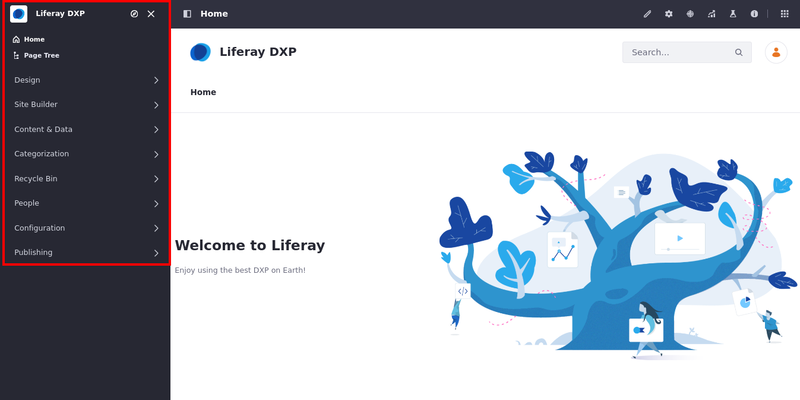
The site menu indicates the selected site. In the above example, the site is Liferay DXP. You can change what site you are working with by clicking the Compass ( ) in the site menu.
These are some common site building and management activities that can be done in the site menu:
- Adding pages
- Creating content
- Managing site memberships
- Configuring and optimizing site behavior and functionality
Applications Bar
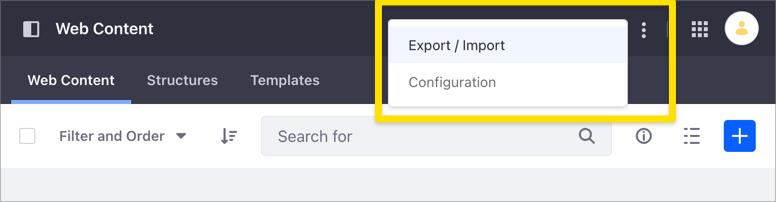
The Application Bar appears at the top of each page and Site Menu application. The application bar shows an Options menu ( ) with different options depending on the application that is currently open.
When you open a page in view mode, the available tools in the application bar change depending on the page type.

For content pages (A), the available tools are
| Tools | Description |
|---|---|
Edit ( ) ) | Access the page’s editor. |
Configure Page ( ) ) | Access the page’s configuration. |
Simulation ( ) ) | Access preview for different screen sizes and content that users can have on a page. |
Content Performance ( ) ) | Opens the Content Performance tool, which helps analyze your content performance quantitatively. |
A/B Test ( ) ) | Opens the A/B Testing tool, which evaluates the effectiveness of content pages by testing a variant design against the current design. |
Page Audit ( ) ) | Opens the Page Audit tool, which helps users identify performance-related issues. |
For widget pages (B), the available options are
| Tools | Description |
|---|---|
| Configure Page () | Access the page’s configuration. |
Toggle Controls ( ) ) | Enable/Disable a widget’s controls that pop up when you hover your cursor over them. |
Add ( ) ) | Access the page’s editor. |
| Simulation () | Access preview for different screen sizes and content that users can have on a page. |
| Content Performance () | Opens the Content Performance tool, which helps analyze your content performance quantitatively. |
| Page Audit () | Opens the Page Audit tool, which helps users identify performance-related issues. |
The application bar options for content and widget pages depend on your Liferay DXP version. Content Performance is available for content pages starting with Liferay DXP 7.3 and for widget pages starting with Liferay DXP 7.4. Page Audit is available starting with Liferay DXP 7.4, and the Toggle Controls option is available starting with Liferay DXP 7.3.
Personal Menu
The Personal Menu is the hub for information and activities for a user that is logged in.
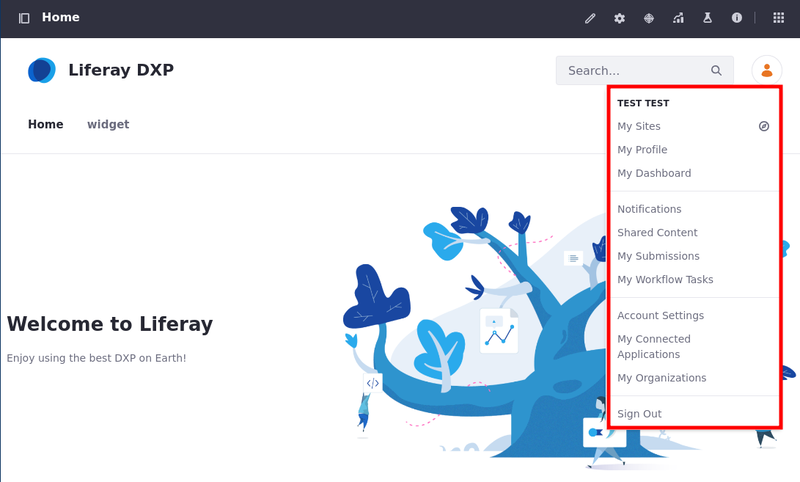
These are several common actions that users can perform from the personal menu:
Global Menu
The DXP Global Menu contains the Applications, Commerce, and Control Panel menus. In 2026.Q2+, the Global Menu also has a link to the Liferay CMS when you enable it.
Click the Global Menu ( ) at the top right corner of the screen to access it.
By default, users with the Guest or User roles cannot access the Global Menu.
The Global Menu’s appearance changed with Liferay DXP 2026.Q2. Clicking any of the menu option links (Applications, Commerce, Control Panel, or CMS when enabled) opens a separate page with the chosen menu.
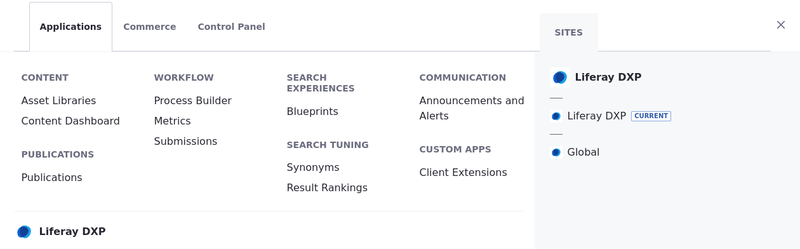
Before 2026.Q2, the Global Menu organizes the Applications, Commerce, and Control Panel menus into tabs, which all appear on the same screen.
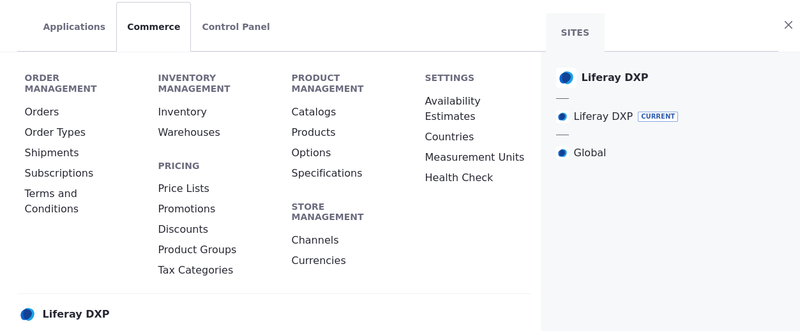
You can also navigate to your available sites from the Global Menu. The list of sites appears below the menu links in 2026.Q2+, and on the right side of the interface in earlier versions.
Applications Menu
The Applications Menu contains a variety of links to manage many different applications within your Liferay DXP server.
In Liferay DXP 2026.Q2+, the Applications Menu opens on a separate page. The applications appear in collapsible groups on the left with a search bar, and with larger icons in the middle of the page.
In versions before 2026.Q2, the Applications Menu is one of the Global Menu’s tabs.
Here are some of the applications that can be managed from the Applications Menu:
Commerce Menu
Beginning in Liferay 7.3 CE GA6 and Liferay DXP 7.3 GA1, Liferay Commerce 3.0 is now bundled with Liferay Portal 7.3 CE GA6 and Liferay DXP 7.3 GA1.
In Liferay DXP 2026.Q2+, the Commerce Menu opens on a separate page. The available functions appear in collapsible groups on the left with a search bar, and with larger icons in the middle of the page.

In versions before 2026.Q2, the Commerce Menu is one of the Global Menu’s tabs.

Here are some functions that can be managed from Liferay Commerce:
To learn more about Liferay Commerce, see Introduction to Liferay Commerce.
Liferay CMS
Liferay DXP 2026.Q1+
When you enable Liferay CMS, the Global Menu includes a link to the CMS home page.
 In the CMS, add spaces to get started managing your content.
Control Panel
The Control Panel contains general administrative actions and configurations that can be scoped globally to the Liferay DXP installation or to a particular instance.
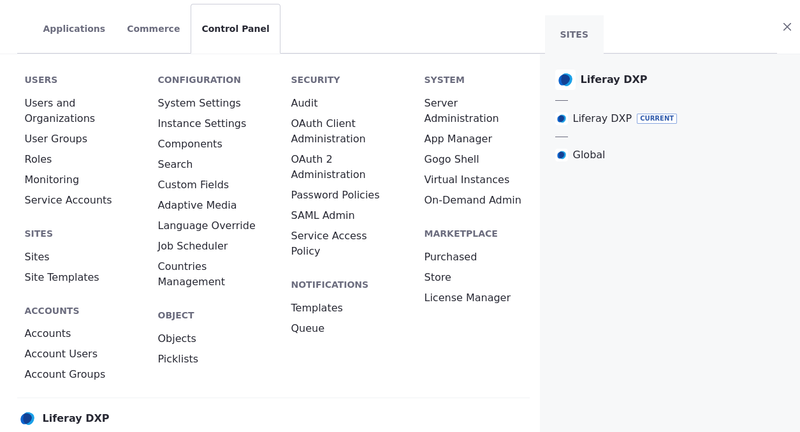
In Liferay DXP 2026.Q2+, the Control Panel opens on a separate page. The available features appear in collapsible groups on the left with a search bar, and with larger icons in the middle of the page.

In versions before 2026.Q2, the Control Panel is one of the Global Menu’s tabs.

Here are some common administrative activities you can perform in the Control Panel:
- Manage users, permissions, and roles
- Change how users login
- Create new sites
- Add new custom fields to applications on the site
DXP 7.1 and 7.2
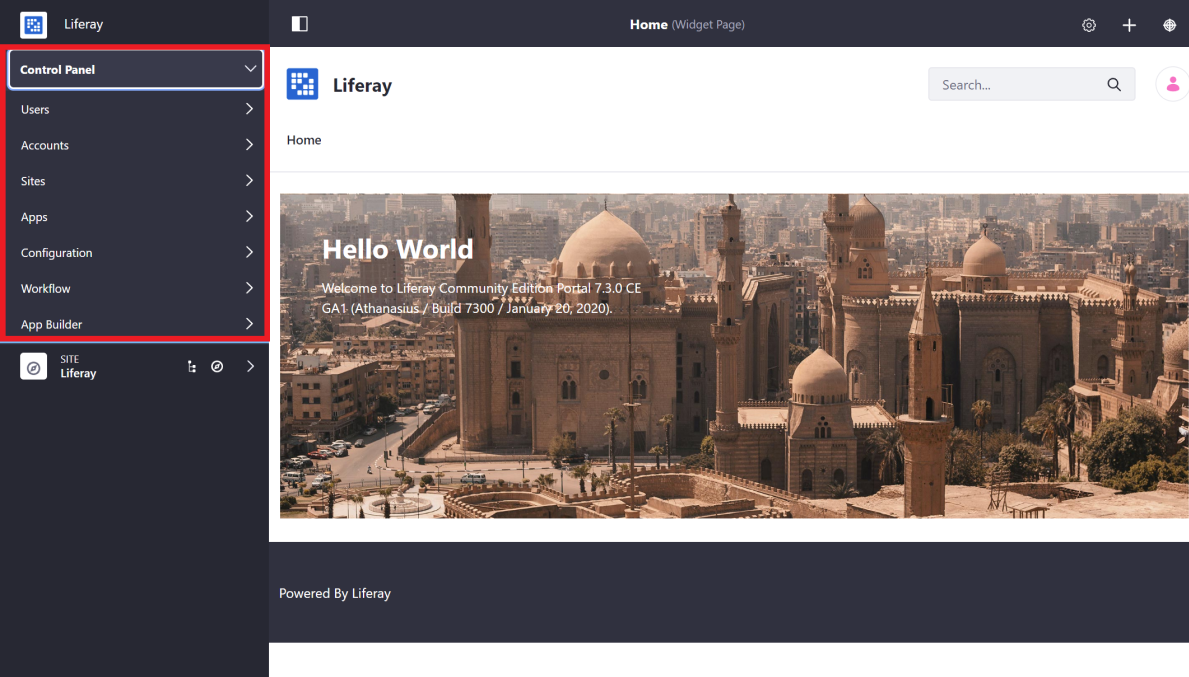
In Liferay DXP versions before 7.3, the contents of the global menu are found within the control panel, which is located above the site menu on the left side of the screen.

What’s Next
Continue our Getting Started walkthrough and learn about Creating Your First Site.