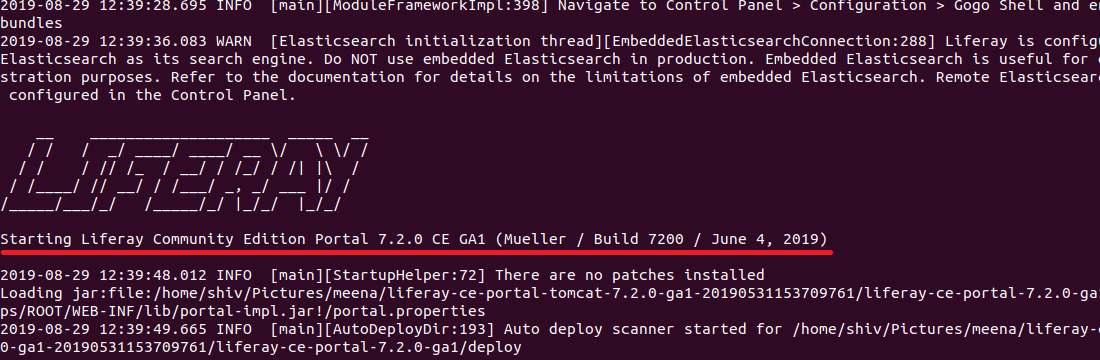
How to find whether the Liferay bundle is Community Edition or Enterprise Edition

Written By
Sivakumar Perumal
How To articles are not official guidelines or officially supported documentation. They are community-contributed content and may not always reflect the latest updates to Liferay DXP. We welcome your feedback to improve How To articles!
While we make every effort to ensure this Knowledge Base is accurate, it may not always reflect the most recent updates or official guidelines.We appreciate your understanding and encourage you to reach out with any feedback or concerns.
Legacy Article
You are viewing an article from our legacy "FastTrack"
publication program, made available for informational purposes. Articles
in this program were published without a requirement for independent
editing or verification and are provided"as is" without
guarantee.
Before using any information from this article, independently verify its
suitability for your situation and project.
Issue
- How to find whether the Liferay bundle is Community Edition or Enterprise Edition
Environment
- Liferay Portal 6.x
- Liferay DXP 7.x
Did this article resolve your issue ?