For Best Practices on creating support tickets, please see HERE
To access the ticketing home page, you will need to log into the Help Center.
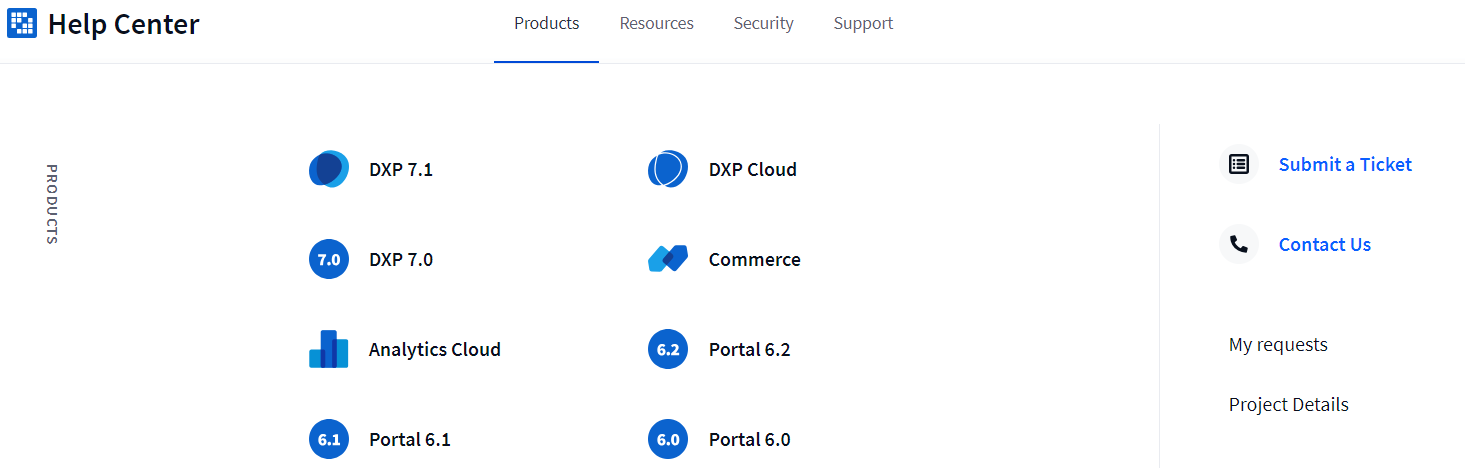
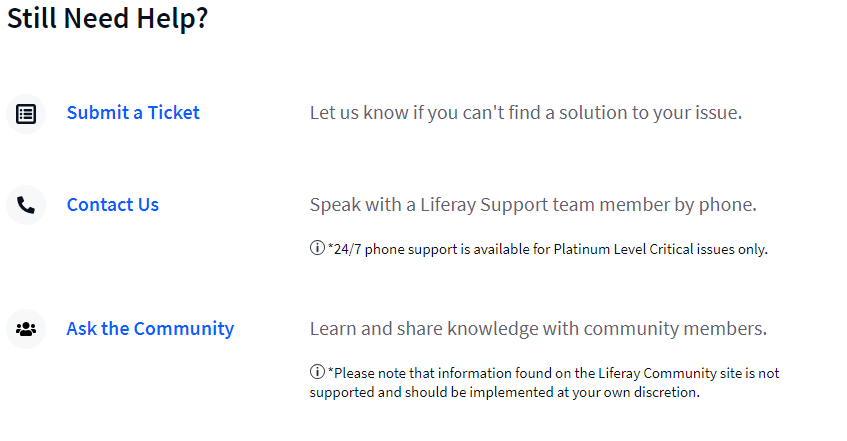
After doing so, there are two access points to get to the ticketing home page. On the far right side of the mega menu, there will be a link labeled “Submit a ticket”, and the other is towards the bottom of the home page in the “Still Need Help” section.
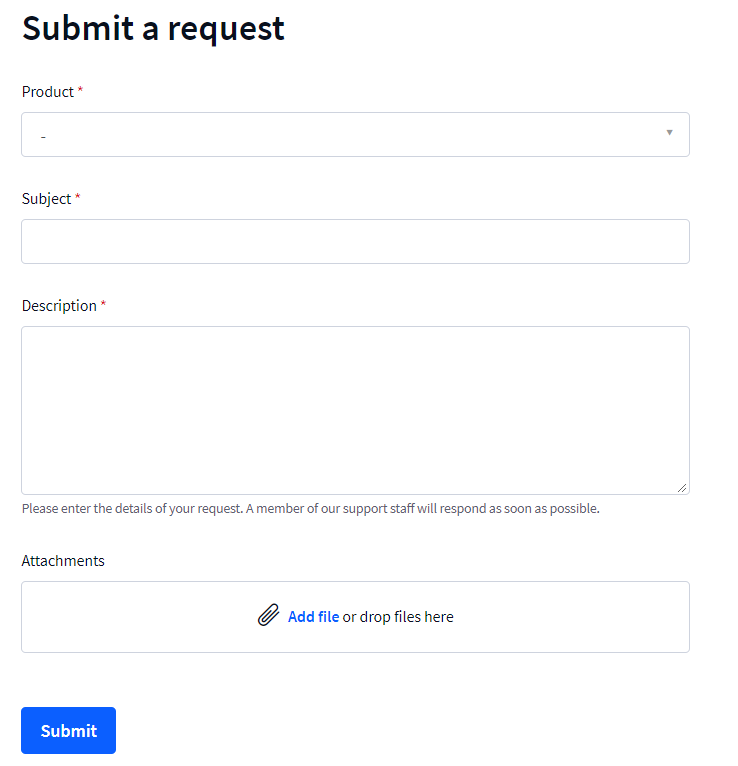
This is what the ticket form will look like:
Next will be to select a product.
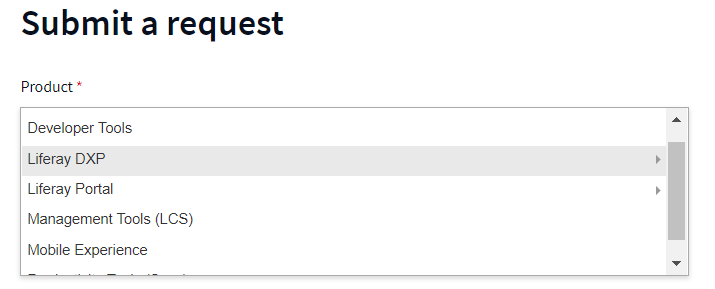
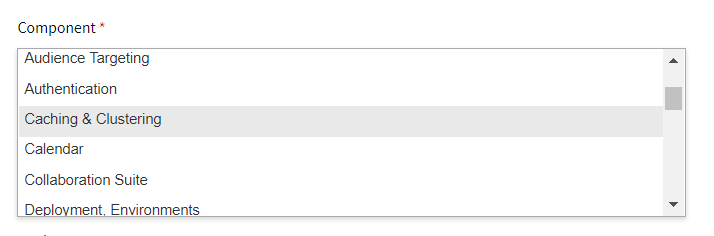
The component list will provide an exhaustive list related to the selected product.
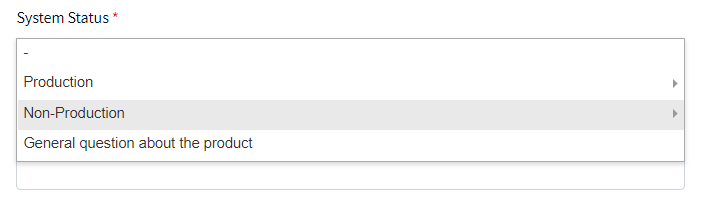
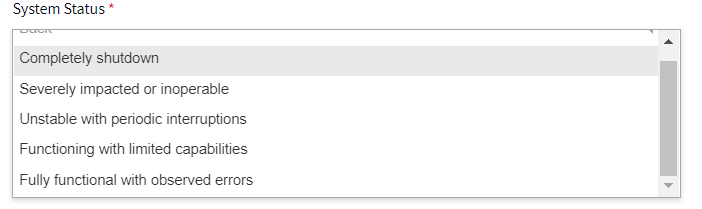
The system status will be discerned by the environment whether it’s non-production, production or backup along with determining whether the server is unstable or completely inoperable.
In the subject line, a brief description of the issue can be provided here.

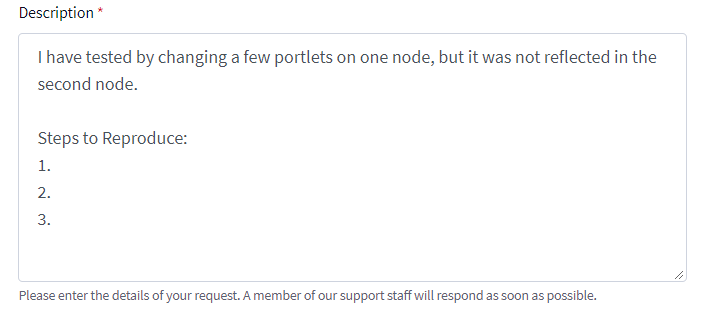
For the description, this is where the additional information will be provided. This will include a more detailed description of the issue, steps to reproduce as well as what tests have already been conducted. The purpose of providing the steps to reproduce is so that the Customer Support Engineer will be able to try and replicate the exact steps when assisting on the support ticket.
Lastly, if there is any additional information that can be provided, including any third party applications or anything outside of the Liferay box, please provide it on the ticket.
If there are any files that can be included to aide in the investigation, they can be added to the ticket form. Please note that the maximum file size is 20MB. If you have a file that is larger than that, there will be a way to add the larger files after submitting the ticket.
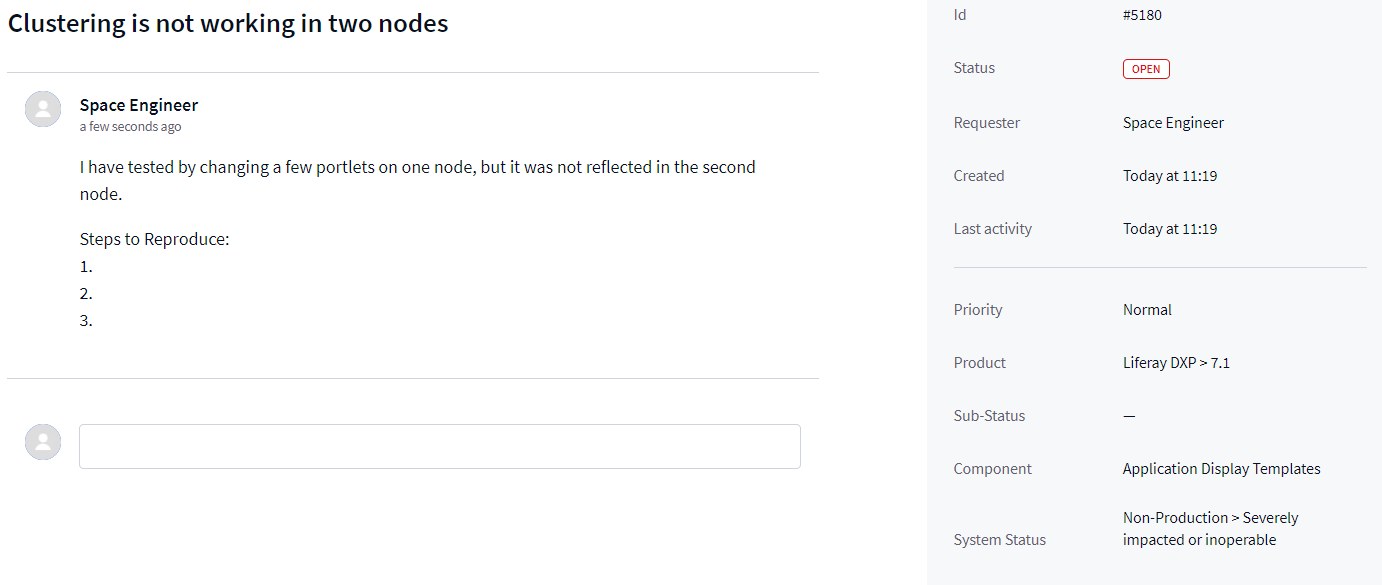
After submitting a ticket, this is what the page will look like.
As you look to the bottom of the page, there is an option to attach files. As previously mentioned, files larger than 20mb can be uploaded from here.

The Customer Support Engineer will be corresponding with the Subscriber on the ticket, and an email will also be sent with each update. A nice feature with the new ticketing system is that when responding to an automated email, it will automatically copy the response to the ticket so that the subscriber will not need to log back in to leave a comment. Please note that this will only work for developers commenting after a ticket has been created.