Liferay Portal users can export and import the contents of the Web Content Display portlets as a Liferay Archive (LAR). When exporting a LAR from the Web Content Display Portlet, the past versions of a web content article are not included in the exported LAR file.
This is intended behavior. Prior to Liferay Portal 6.1GA3, it was not possible to export past versions of a web content article. Starting in Portal 6.1 GA3, if users want to include past versions of the web content, they must begin the export of the LAR process from the Web Content portlet in the Control Panel and not from the Web Content Display portlet itself.

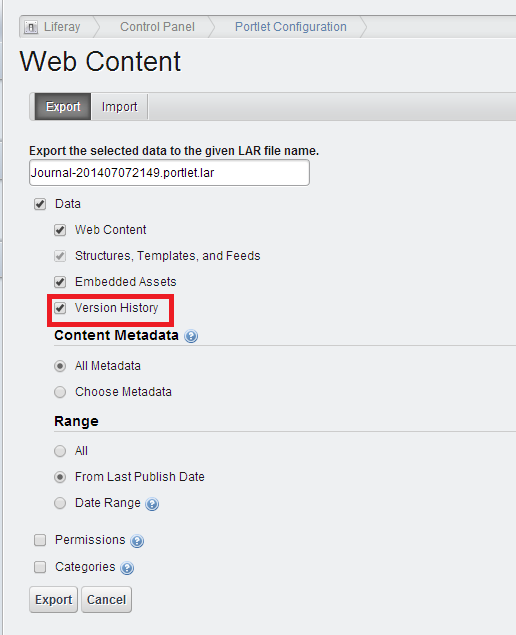
To reproduce this behavior in Liferay Portal prior to 6.1 EE GA3:
- Add a page to a site - "Web Content Page".
- Add the Web Content Display Portlet.
- Click the "Add Web Content" button on the portlet.
- Create a new web content article.
- Publish the article.
- Edit the article and publish again.
- Click the "Wrench" icon to expand the Option menu.
- Click "Export / Import".
- Name the LAR file in the text box: "Export the selected data to the given LAR file name."
- Click the "From Last Publish Date" radio button.
- Click "Export". The LAR file will be exported onto your local machine.
- Navigate to the site page where the LAR is to be imported.
- Add a new Web Content Display portlet.
- Click the "Wrench" Icon to expand the Option menu. Click "Export/Import".
- Click the Import tab.
- Upload the LAR file then click "Import" while using the default settings.
- The Web Content Display portlet will display the latest version of the article.
- Edit the article in Control Panel and click the "View History" button.
As expected, only the latest version was exported.
Resolution
If users require the inclusion of past versions of the same article during the export process, the following steps will need to be taken:
Option 1:
- Upgrade to Liferay Portal 6.1 EE GA3.
- Export the LAR through the Web Content Portlet in the Control Panel.
Option 2:
- If using versions of Liferay Portal prior to 6.1 EE GA 3, users can also contact Liferay Support and request a hotfix for LPS-29936.
- Install the hotfix.
- Export the LAR through the Web Content Portlet in the Control Panel.