Accessibility Menu option available in Liferay

Written By
Anushka Tiwari
How To articles are not official guidelines or officially supported documentation. They are community-contributed content and may not always reflect the latest updates to Liferay DXP. We welcome your feedback to improve How To articles!
While we make every effort to ensure this Knowledge Base is accurate, it may not always reflect the most recent updates or official guidelines.We appreciate your understanding and encourage you to reach out with any feedback or concerns.
Legacy Article
You are viewing an article from our legacy "FastTrack"
publication program, made available for informational purposes. Articles
in this program were published without a requirement for independent
editing or verification and are provided"as is" without
guarantee.
Before using any information from this article, independently verify its
suitability for your situation and project.
Issue
- How to enable the accessibility menu on the portal
Resolution
- To make it easier for the user to enable certain accessibility properties. Users can access the accessibility menu options available from DXP 7.4 u86
- Navigate to Site Menu > Configuration >Site settings >Accessibility, enable the accessibility menu, and click on 'update'
- To access the accessibility option, click on the browser Tab and then press
Tab. The "Skip to Content" accessibility option will appear in the top left corner.
- Now, press
Tab again. the "Open Accessibility Menu" option will be visible. Then, press Enter
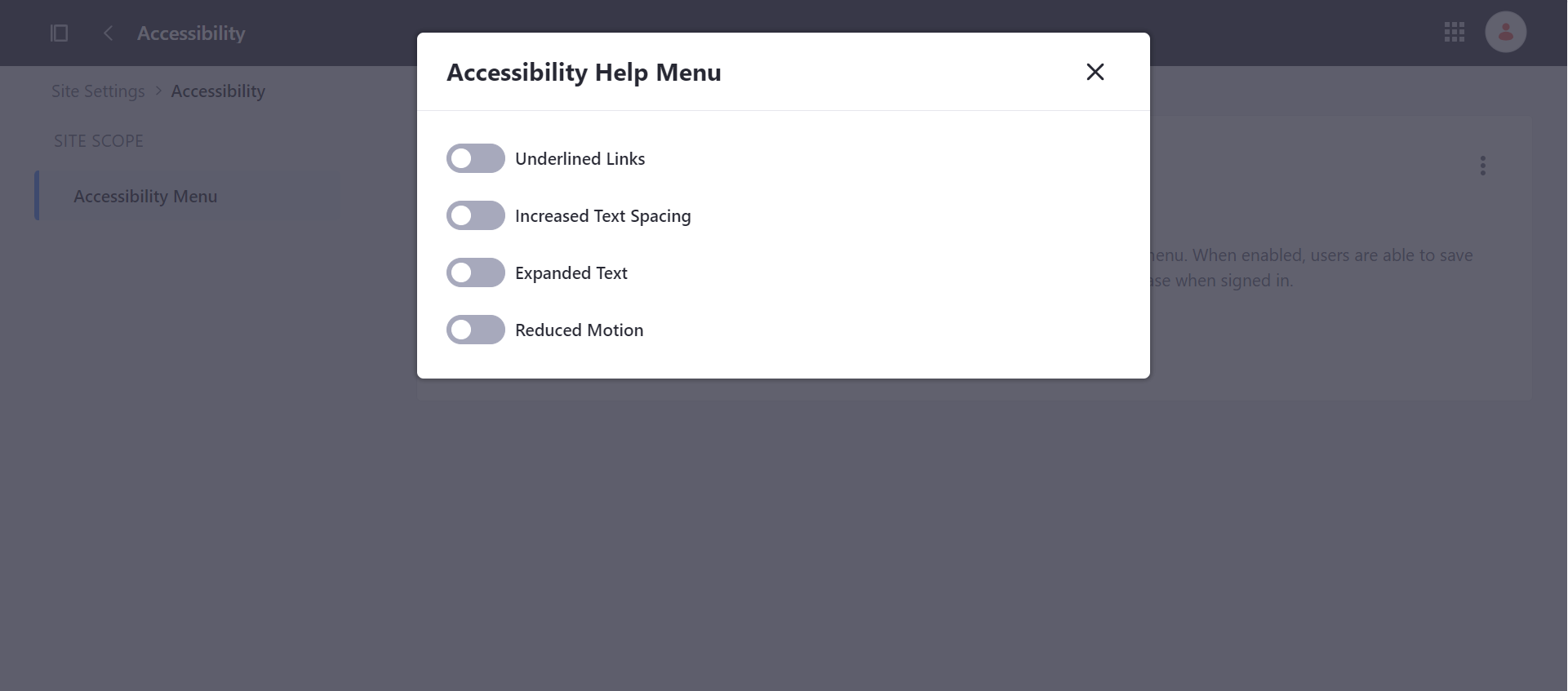
- The below multiple accessibility options will appear for the user to customize certain accessibility settings in a specific way.
- Underlined Links
- Increased Text Spacing
- Expanded Text
-
reduced Motion
Did this article resolve your issue ?