Issue
Configure the default email domain applied to newly created user environments within Liferay DXP.
Environment
Liferay DXP 7.3+Resolution
Follow these steps:
-
Open the Global Menu and navigate to the Control Panel.
-
Click Instance Settings.
-
Select Instance Configuration.
-
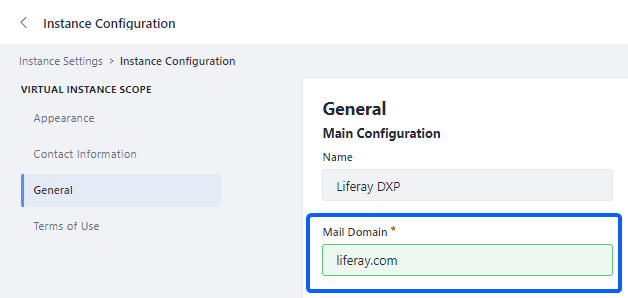
Locate the General section.
-
Modify the value within the Mail Domain field.
Additional Information
Impacts of Changing the Mail Domain:
-
User Email Addresses: This configuration change affects existing and newly created user accounts. Liferay DXP changes user email addresses automatically to reflect the newly specified domain.
-
Notification Templates: Email templates utilized for system notifications or password resets require manual updates to align with the new domain format.
-
SMTP Mail Server Configuration: Mail transport settings, including
SMTPprofiles, must be reviewed to verify compatibility with the modified domain architecture. -
Database Modifications: Underlying identity records are updated dynamically within the system database tables.
-
Identity Provider and SSO Integrations: External systems utilizing email attributes for user provisioning, synchronization, or single sign-on (
SSO) handshakes must be adjusted.