Description
This article describes how to remove the default "Document Types" from the Documents and Media portlet. These sample Document Types are created when Liferay DXP 7.0 is started for the first time. These exist so that document creators and reviewers can leverage specific metadata fields for each document in the Documents and Media repository. For example, the Contracts Document Type offers customized fields, such as Legal Reviewer and Effective Date.
The use case is when site administrators want to delete the sample data and keep only those they want. The sample Document Types can be deleted successfully, but the Document Types themselves are always recreated the next time the application server is ever restarted.
Resolution
There is a way to prevent the default Document Types from being recreated every time the platform is started.
- First, delete all the unwanted Document Types.
- Navigate to the Control Panel → Content :→ Documents and Media .
- Click the 3 dot icon → Document Types in the upper right corner.
- Click the 3-dot icon → Delete.
- Second, navigate to the Control Panel → Configuration → System Settings.
- Click the Collaboration tab.
- Click Documents & Media Service.
- Uncheck the Add Default Structures checkbox.
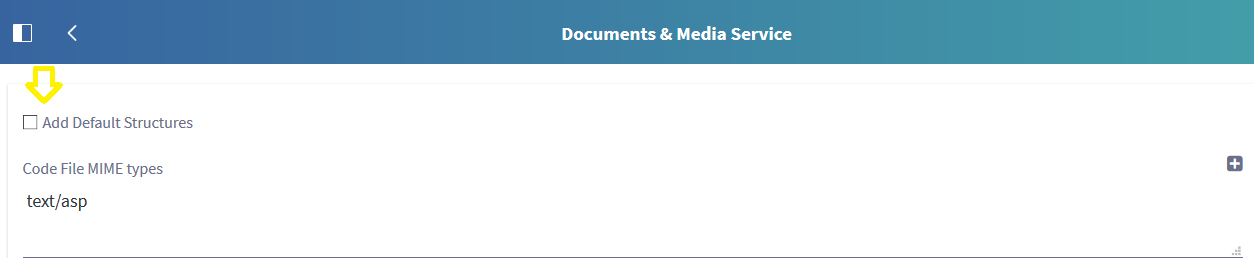
- Click Save.
At this point, the Document Types have been deleted and cannot be restored in the Recycle Bin.
If the application server is ever restarted, the Document Types are not recreated. To add them back, reverse the process by checking the Add Default Structures then restart the application server.