Issue
- How to set up Google Cloud Translator integration with Liferay DXP
-
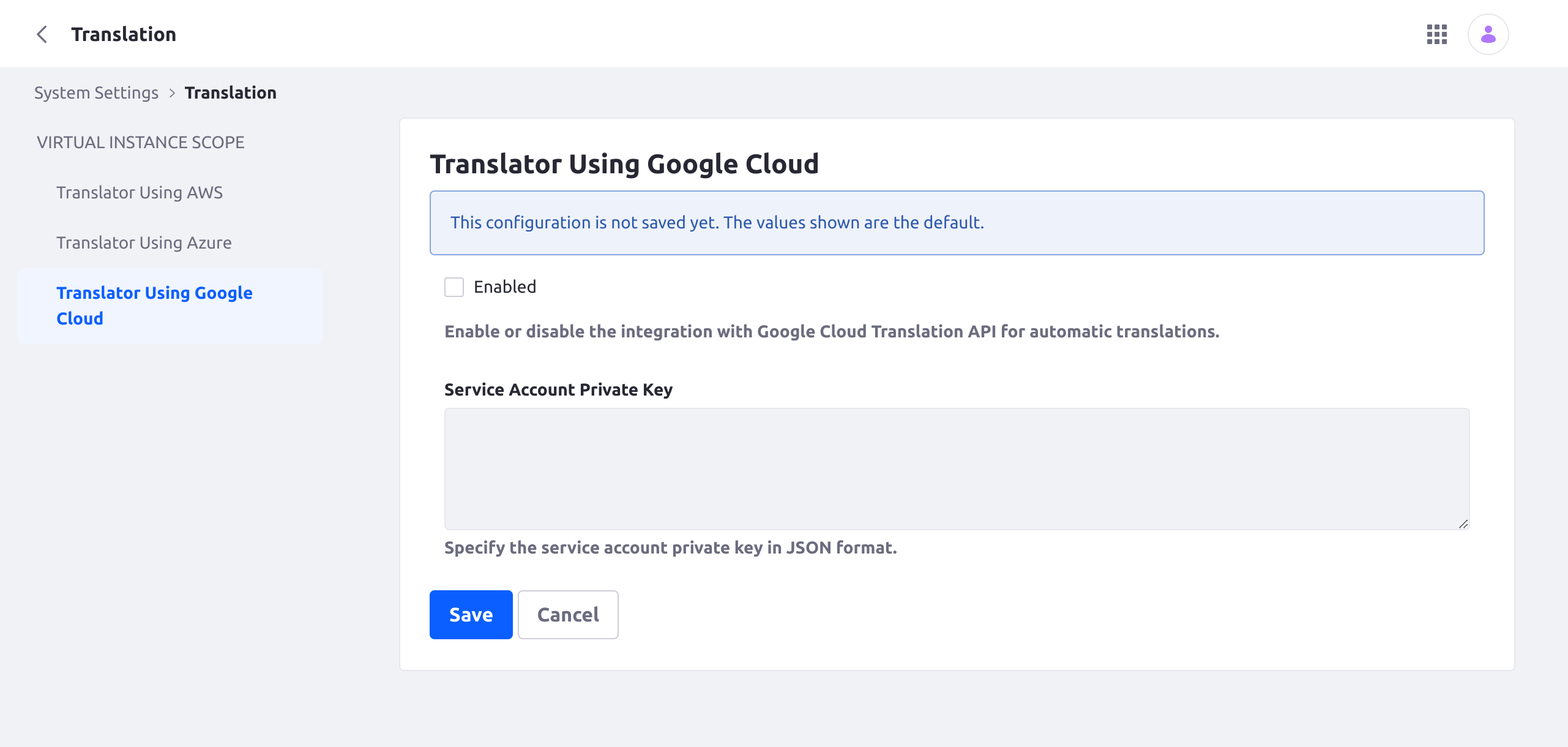
What type of information needs to be added in the field Service account private key
Environment
- Liferay DXP
Resolution
-
To use Google Cloud Translator with Liferay DXP, you'll first need to have an account and a project in Google Cloud Translate.
-
You can generate and download a JSON file with the service keys from the Google Cloud Console. This file is used by Google Cloud to communicate with its API, and as a result, the specific configuration and its parameters depend on this API.
-
The JSON-formatted information in this file will look something like this
{
  "type": "service_account",
  "project_id": "nodal-boulder-382911",
  "private_key_id": "8f425417f9128788052333f754076f708c5a2005",
  "private_key": "-----BEGIN PRIVATE KEY-----\nMIIXXXXXXXX4FNBQRv7C3trrv5s\n7CwTtwfl/maC50Y9SmlG9yHMNA==\n-----END PRIVATE KEY-----\n",
  "client_email": "mi-cuenta-de-servicio@nodal-XXXXXXXXXXX.gserviceaccount.com",
  "client_id": "10946999999993106",
  "auth_uri": "https://accounts.google.com/o/oauth2/auth",
  "token_uri": "https://oauth2.googleapis.com/token",
  "auth_provider_x509_cert_url": "https://www.googleapis.com/oauth2/v1/certs",
  "client_x509_cert_url": "https://www.googleapis.com/robot/v1/metadata/x509/mi-cuenta-de-servicio%40nodal-boulder-xxxxxxgserviceaccount.com",
  "universe_domain": "googleapis.com"
}
-
This JSON-formatted information will be necessary in the DXP integration tab:
Additional Information