Bookmarks Widget Unavailable
How To articles are not official guidelines or officially supported documentation. They are community-contributed content and may not always reflect the latest updates to Liferay DXP. We welcome your feedback to improve How To articles!
While we make every effort to ensure this Knowledge Base is accurate, it may not always reflect the most recent updates or official guidelines.We appreciate your understanding and encourage you to reach out with any feedback or concerns.
Legacy Article
You are viewing an article from our legacy "FastTrack"
publication program, made available for informational purposes. Articles
in this program were published without a requirement for independent
editing or verification and are provided"as is" without
guarantee.
Before using any information from this article, independently verify its
suitability for your situation and project.
Issue
- The Bookmarks Widget is unavailable in DXP 7.4.
Resolution
- There is a workaround that can be implemented to get the Bookmarks Widget up and working again. Here are the steps to implement the workaround.
- In Order to create a Liferay custom object "Bookmark" go to Control Panel > Object > Objects. Click on the Plus icon to create a new custom object.
- Go inside the newly created object and save the setting. Show Widget and Enable Categorization should be toggled to on.
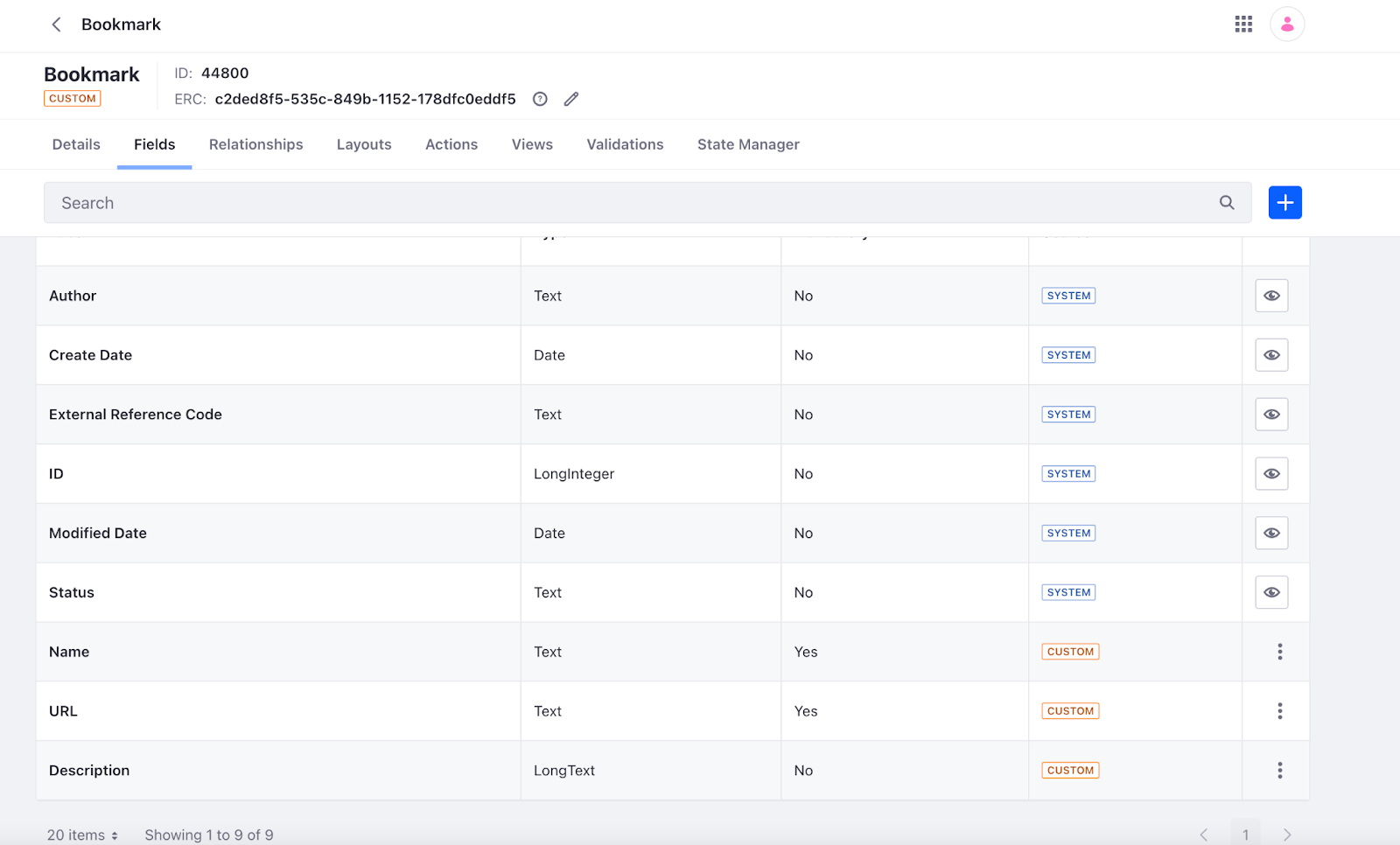
- Create 3 new custom fields in the Bookmark custom object namely "Name", "URL" and "Description" like below.
- Create a layout for the Bookmark custom object form so that keeping two fields in the same row is an option. Once everything is complete, publish the Bookmark object and it will be available under Applications > Content > Bookmark.
- Go to Bookmark, you will be able to see all the added bookmarks here and by clicking on the Plus icon. You can also add new bookmark entries.
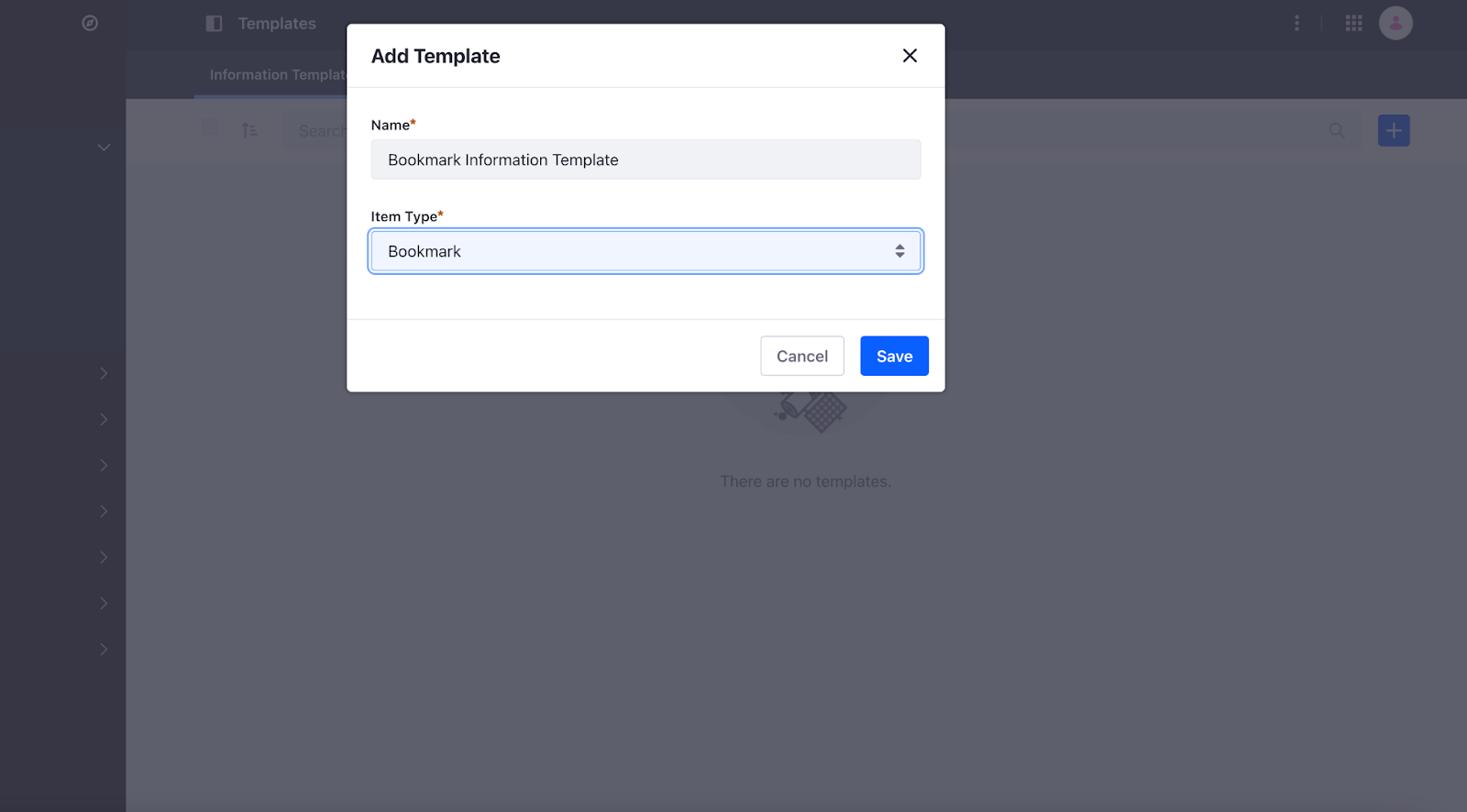
- To show these bookmark entries in-site with a custom look and feel, you would have to create an information template using the "Bookmark" object shown below, and inside the template, you will have access to all the custom fields that have been created for Bookmark objects.

- Now go to any content page on the site and add a "Collection Display" Fragment to the page. Here on the right-hand side, we have the option to select the collection, click on it and select the bookmark collection for this "Collection Display".

- The last step is to add an "HTML" fragment in the area of the "Collection Display" and attach the "Bookmark Information Template" to the "Collection Display".
Did this article resolve your issue ?