Adding a valid liferay runtime in Dev Studio
How To articles are not official guidelines or officially supported documentation. They are community-contributed content and may not always reflect the latest updates to Liferay DXP. We welcome your feedback to improve How To articles!
While we make every effort to ensure this Knowledge Base is accurate, it may not always reflect the most recent updates or official guidelines.We appreciate your understanding and encourage you to reach out with any feedback or concerns.
Legacy Article
You are viewing an article from our legacy "FastTrack"
publication program, made available for informational purposes. Articles
in this program were published without a requirement for independent
editing or verification and are provided"as is" without
guarantee.
Before using any information from this article, independently verify its
suitability for your situation and project.
Issue
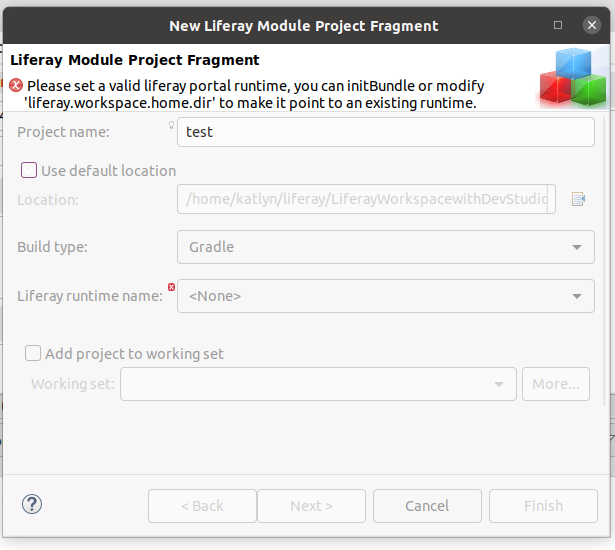
- When attempting to create a Liferay Module Project Fragment, I'm encountering the following error:
"Please set a valid liferay portal runtime, you can initBundle or modify 'liferay.workspace.home.dir' to make it point to an existing runtime."
Resolution
- To set a valid liferay portal runtime, utilize one of the following methods below:
-
Method A: Initialize a server bundle:
- Right-click the Liferay workspace project > click Liferay > click Initialize Server bundle
-
Method B: Add an existing server runtime manually and point to a location outside the liferay workspace:
- In Dev Studio, navigate to Window > Preferences > Server > Runtime Environments
- Click 'Add' to add a new Liferay runtime (of type "Liferay, Inc.), and configure the fields to match the existing Liferay bundle that you'd like to set as the liferay workspace home directory.
- Modify gradle.properties and configure the value of the liferay.workspace.home.dir property to the path of the existing bundle.
Did this article resolve your issue ?